Guide
How to make and edit videos with Claude and Remotion
No editing software, no timeline, no code you have to write yourself. You describe the video, Claude builds it, and you watch it change while you talk.
Every video you make in an editor costs the same as the last one. The twentieth version of the same clip needs the same dragging, the same nudging, the same exporting.
Remotion breaks that. It builds video out of the same stuff web pages are made of — which means an AI can build it and change it for you. You say what you want, it writes the video, and the preview on your screen updates as you talk.
This guide takes you from nothing to a finished MP4. You do not need to know how to code, and after the first two installs you will not touch a terminal: Claude runs the commands for you and you type sentences.
Set aside twenty minutes for the first time, and an afternoon at some point for the step that decides whether your videos look like yours. After that, a new video is a conversation.
Install Node.js
nodejs.org
Go to nodejs.org and download the version marked LTS. Open the file it downloads and click through the installer like any other app.
That is the whole step. Node is the engine Remotion runs on; there is nothing to configure and you will never open it.
Tip · Not sure whether you already have it? Skip this step. Claude checks in step four and tells you if it is missing.
Install Claude
claude.com/download
Download the Claude desktop app and sign in. This is the version that can work with files and run things on your computer, and it is why this guide has almost no terminal in it.
One thing to know before you start: this needs a paid Claude plan — Pro or above. The free tier does not include it.
Tip · Comfortable with a terminal and prefer it? Paste
curl -fsSL https://claude.ai/install.sh | bashon macOS or Linux, orirm https://claude.ai/install.ps1 | iexin Windows PowerShell. Then typeclaudeinside any folder.Make a folder for your videos
Create an empty folder anywhere — your desktop is fine. Call it my-videos.
In Claude, open that folder as your project. Everything from here happens inside it: the video, the images, the finished files. Nothing gets scattered around your computer.
Ask Claude to install Remotion
Now stop clicking and start talking. Paste this and send it.
Claude will ask permission to run a couple of commands — say yes. It takes a minute or two, because it is downloading Remotion and the browser it uses to draw each frame.
When it finishes, a page opens in your browser. That is your editor.
Say this to Claude Set up a new Remotion project in this folder using the hello-world template, then start the studio so I can see it.Tip · If Node.js is missing, this is where Claude tells you. Go back to step one and come back — nothing is lost.
Teach it Remotion before you ask for anything
Do not skip this. It is the difference between a video you would post and one you would quietly delete.
Claude knows Remotion exists. What it does not know is everything Remotion can do — the audio handling, the transitions, the way it loads fonts and images, what it can pull in from outside. Ask it to go and read, once, and it stops guessing.
You do this a single time per project. Every video you make afterwards is better for it.
Say this to Claude Before we make anything: go and read the Remotion documentation properly. Learn what it can do with audio, video, transitions, fonts, images and outside data. Then tell me, in five lines, what you now know it can do that you would not have guessed.Tip · Those five lines back are the point. If the answer is vague, it did not read anything — say so and make it go again.
Look at what just opened
This is the Remotion Studio, and it is not a video player: it is your video, alive, updating as things change.
Three parts, and that is all you need to know. Down the left are your videos — you can have several in one folder. In the middle is the frame you are looking at right now. Along the bottom are the pieces the video is made of, each one sitting where it appears in time.
Leave it open on one side of your screen while you work. You are about to watch it change.
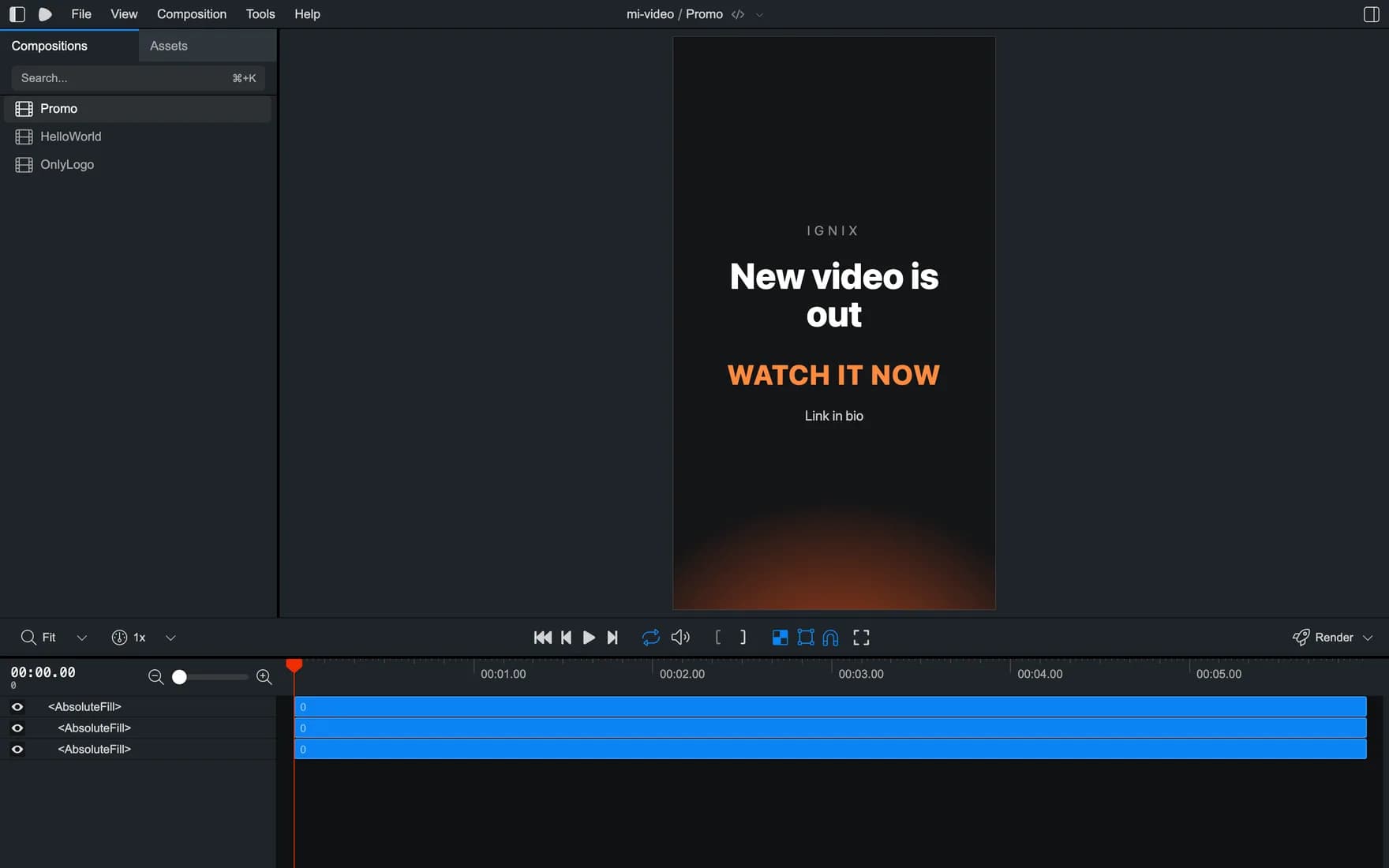
The studio, running on the machine this guide was written on. Left: your videos. Middle: the current frame. Bottom: the pieces it is made of. Describe the video you want
Now ask for your own. The example below is the one that made the frame in the screenshot above, and it works because it is specific about the three things Claude cannot guess for you.
The shape. Say vertical for Reels, TikToks and Stories, horizontal for YouTube. Say it out loud — those are completely different videos and there is no default worth guessing.
The look. Your colours, in words or as hex codes. If you have a brand, this is where it goes.
The exact words. Write the text yourself. An AI inventing your own copy is the one thing here that is worse than useless.
Say this to Claude Make me a vertical video, 6 seconds, for Instagram Reels. Dark almost-black background with a warm orange glow coming up from the bottom that slowly pulses. In the middle, stacked: my name in small letters at the top, then a big bold line, then a short line in orange underneath, then a small line at the bottom. Use these words: "New video is out" / "WATCH IT NOW" / "Link in bio". Let me change those words later without touching anything else.Tip · That last sentence is the one to remember. It is what lets you reuse this same video for everything you post, instead of asking for a new one every time.
Change it by asking
Save nothing, click nothing. Say what you want different and watch the studio.
All of these work, and none of them need you to know where a setting lives: “make the orange stronger”, “the big line is too big, drop it a bit”, “give me a horizontal version of this same video for YouTube”, “slow it down so the text is readable”, “put my logo in the top corner”.
This is the part that has no equivalent in an editor. You are not looking for the control that does the thing. You say the thing.
Tip · If a change makes it worse, say “undo that, go back to how it was”. Claude keeps track. Nothing you do here is one-way.
Spend one afternoon on your look
This is the step everyone skips and the one that pays for itself. Before making twenty videos, make the style once and keep it.
Tell it what you like and what you cannot stand. Your colours, your fonts, how fast things move, whether text slides in or just appears. Be picky — this is the conversation that decides whether your videos look like yours or like a template.
The trick that works better than describing: send it pictures. Screenshots from Pinterest, frames from videos you admire, a competitor whose captions you like. It reads them and gets closer in one go than in twenty sentences.
Then ask it to save the result as reusable presets, and to write them down in the project so it does not forget between sessions.
Say this to Claude Here are five screenshots of the style I want. Look at the colours, the typography and how the text moves. Turn that into reusable presets in this project — a title style, a caption style, a transition and a colour palette — and write them down so you use them by default from now on.Tip · It gets better as you go. Every time you say "no, more like this", that correction sticks — so correcting it properly early is worth more than any single video.
Get the finished file
When it looks right, ask for the file. Claude runs the export and tells you where it landed — inside your folder, in a new folder called
out.Ask for the cover image in the same breath. Every network wants a thumbnail, and pulling one out of the video itself beats screenshotting it.
The example in this guide came out as a six-second vertical video of about 700 kB, exported in a few seconds. Longer or busier videos take longer: your own computer is doing the work, which is also why it costs you nothing per export.
Say this to Claude Export this video as an MP4 into an "out" folder, and also save frame 90 as a PNG so I have a cover image.
The cover image, pulled straight out of the video. 1080×1920, the size Reels, TikTok and Stories all want. Now make the next fifty
This is where the whole thing pays for itself. You built one video; you can now have as many as you want of it, without opening anything.
Give Claude the list and let it run. Same design, same timing, same brand — different words. Five videos, five languages, or one a week for the next three months.
That is the difference between a video and a template, and it is the reason to do this at all.
Say this to Claude Export this same video five more times, changing only the big line, with these: "Episode 12 is up", "Behind the scenes", "New drop Friday", "Q&A this Sunday", "Sale ends tonight".Tip · Keep the folder. Next month you do not start over — you open it, change the words and export again.
The last step: getting it onto your networks
You have the videos and their covers sitting in a folder. There is exactly one thing left, and Remotion cannot do it: putting them out there. It makes files. It does not have an Instagram account, a posting time or an inbox.
So the last step is the manual one — open each network, upload, write the caption in the format that network wants, pick the hour, repeat. And then keep an eye on the comments and DMs each video brings in, which is the part that actually turns a view into a customer.
That is the half Ignix does. One calendar for 14 networks, the right format for each, published at the hour your audience is awake. Comments that turn into DMs on their own. Every reply from every network landing in one inbox instead of five apps.
And it connects to Claude directly, so the same conversation where you just made the video can schedule the post and set up the automation underneath it.
Tip · Exporting fifty videos in a minute is worth very little if publishing them is fifty uploads. That is the bottleneck you just moved, not removed.
A few things worth knowing
None of these will stop you today. All of them will surprise you in a month if nobody tells you now.
- Your own computer does the work
- There is no cloud and no queue: exporting happens on your machine. A few seconds of text is instant. A two-minute video with heavy effects will make a laptop breathe hard. Nothing breaks, it just takes longer.
- Bring your own logo, font or clip
- Drop the file into your project folder and tell Claude it is there. That works for a logo, a brand font, background music or a clip you shot on your phone — it can all go into the video.
- Music works. Mixing by ear does not
- You can add a track or a voiceover, trim it and set where it starts. What you will not get is a waveform to drag around. If an edit needs you to feel your way through the audio, cut that part somewhere else.
- Say the shape out loud, every time
- Vertical for Reels, TikTok and Stories. Horizontal for YouTube. Square if you still post those. It is one sentence to Claude and it is the single most common thing people forget.
- Ask it to save versions
- Tell Claude to set up version history in the folder on day one. From then on, “I liked it better before” is a sentence that actually gets you back there, instead of a guess.
- Anything a web page can show, a frame can show
- Charts, maps, a counter, live numbers pulled from somewhere. A video whose figures update themselves is ordinary here and impossible in an editor — worth knowing before you decide what to make.
Questions people actually ask
- Do I really not need to know how to code?
- No. Claude writes it and changes it; you describe what you want and look at the result. What you do need is to be willing to install two things once and to describe what you want clearly — which is the same skill that makes a good brief for a human editor.
- What does it cost?
- Remotion is free for individuals and small teams, and exporting on your own machine costs nothing per video — no watermark, no export limit, no subscription. The one paid part is Claude: this needs a Pro plan or above.
- Is this better than CapCut or Premiere?
- For one video that you feel your way through, no — use an editor. For the same video in ten versions, five languages, or every week with different words, it is not close. The question is whether you are making a video or a template.
- Can Claude edit a video I already have?
- Not the footage itself. What it can do is build around it: drop your clip in the folder and it can be trimmed, placed, and have text, captions or graphics layered on top. The editing happens around your video, not inside it.
- Can I use AI-generated images and clips in it?
- Yes, and they behave like any other file. Generate them wherever you like, put them in the folder, and tell Claude to use them. The text, timing and branding stay in the project — which is what keeps fifty versions looking like they came from the same place.
- What about actually posting all this?
- That is deliberately outside Remotion. It makes files; getting them onto Instagram, TikTok, YouTube and the rest at the right time — and handling the comments and DMs they bring in — is a different job. It is the one Ignix does.
And once it is exported
Making the video was the fun half
You just set yourself up to make fifty videos from one folder. Now count what happens next: fifty uploads, across five networks, each with its own caption, its own best hour, its own comment section.
That is the work that does not get faster by exporting faster. Ignix is the other half — everything that happens after the file exists.
Publish everywhere from one place
14 networks — Instagram, TikTok, YouTube, LinkedIn, Facebook, X, Threads, Pinterest and the rest — plus your own website. One video, one calendar, every format handled.
More than one account per network
Two Instagram profiles, three TikToks, a client and your own — all in the same workspace. Most tools make you buy another seat or another plan for that.
Comments turn into DMs by themselves
Someone comments your keyword under the video and the link lands in their inbox, at three in the morning, without you.
One inbox for all of it
DMs, comments and reviews from every network in a single stream. Nothing sits unanswered because it arrived on the app you had not opened.
An AI that knows your business
Feed it your prices, your policies and your tone once, and it answers like someone who works there — and hands the conversation to you the moment it should.
And the AI that makes the assets
Captions, images and video generation built in, plus a direct connection to Claude so it can schedule your posts and run your automations.
That last point matters here more than usual: Ignix connects to Claude directly. The same conversation where you just made the video can schedule the post, set up the comment automation and tell you how the last one did.
Unlimited contacts, unlimited automations, unlimited AI replies. The plan sets how many accounts you connect — not how much you are allowed to use it.
Plans start at $19 a month. Seven days free, no annual contract, and you can cancel in two clicks.
Make the video by talking to Claude. Publish it, schedule it and answer it from one place.